






01
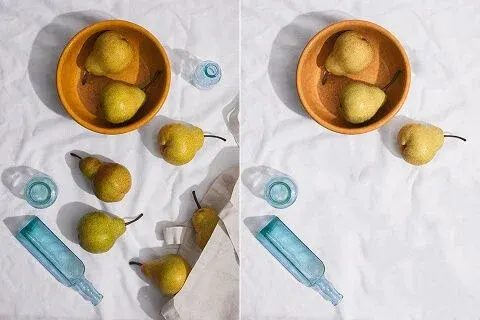
A stray tabletop item
Identify the item by its position and the surface beneath it. Check the repaired grain or pattern.
Upload an image to preview it here. Generated results are saved in Create.
Choose a Wan 3.0 tool to remove distractions, edit a background or enhance a photo. Start with the task your image needs.
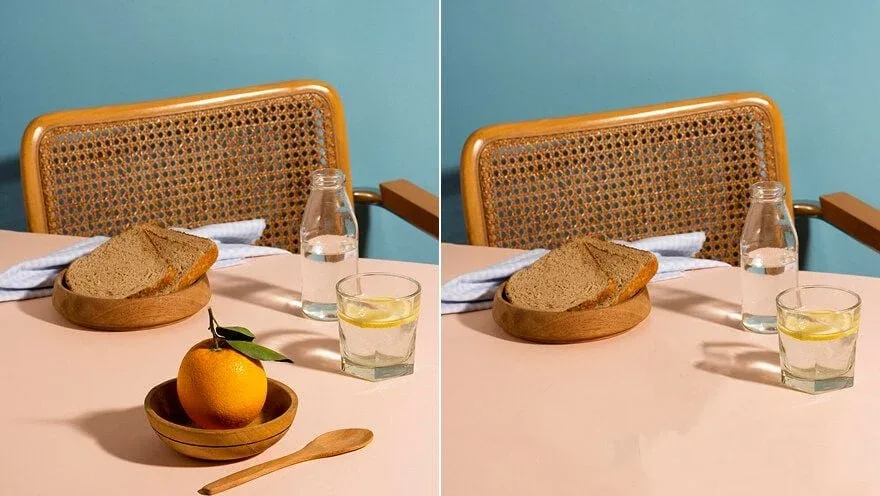
AI Object Remover uses a reference photo and a written target description to generate an edited image. Remove unwanted objects from photos by naming the item and its location, then inspect the repaired area.
Identify the item by its position and the surface beneath it. Check the repaired grain or pattern.
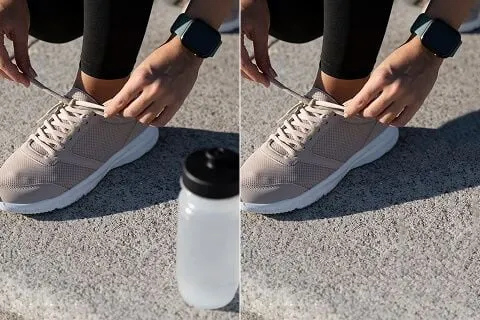
Name the edge and the object so the intended subject is clear. Inspect the surrounding outline afterward.
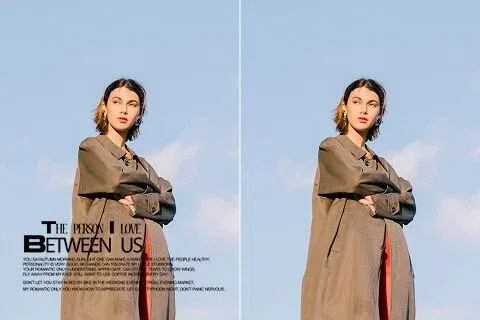
Clear a named distraction in the area intended for typography. Add final text in your design tool.
Put the chosen result into its intended layout or edit. Inspect it at the actual display size before publishing.
Define the requested change before choosing the output.
Upload the source photo and describe the specific adjustment. Mention the details you want the new image to retain.
Check the selected model’s supported image size and format. Confirm the credit estimate for this edit.
Review the generated task in Create. Inspect the edited region and the surrounding details before downloading.
Each direction below addresses a different visual decision.
Identify the item by its position and the surface beneath it. Check the repaired grain or pattern.

Name the edge and the object so the intended subject is clear. Inspect the surrounding outline afterward.
Clear a named distraction in the area intended for typography. Add final text in your design tool.
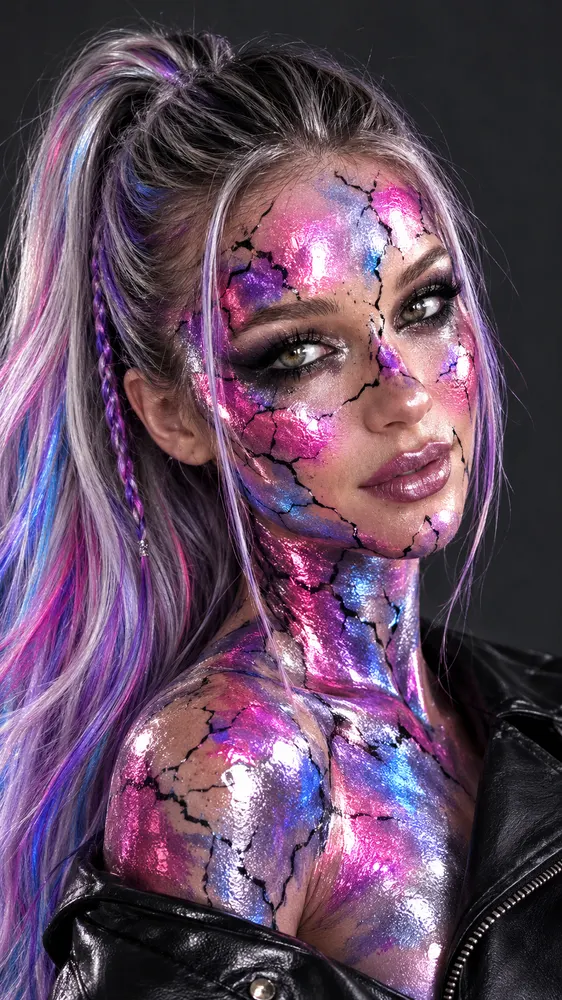
Put the chosen result into its intended layout or edit. Inspect it at the actual display size before publishing.
Check the input, expected output and cost before requesting a draft.
Need help? Contact support
Name the object and its position, such as the receipt beside the plate. Mention the surface or subject that should remain, then inspect the generated repair.
The generation uses the source image and written instructions. Brush controls do not guarantee pixel-level selection, so describe the target clearly and compare the result with the source.
The composer shows the credit estimate for the selected model and settings. Check it again after changing the output format before submitting the request.
AI Object Remover uses a reference photo and a written target description to generate an edited image. Remove unwanted objects from photos by naming the item and its location, then inspect the repaired area.