





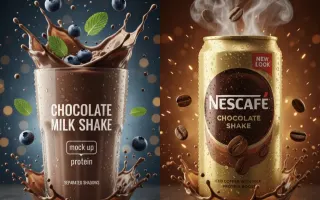
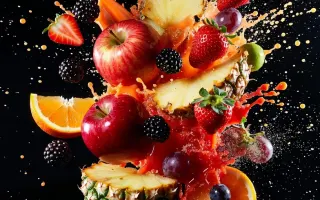
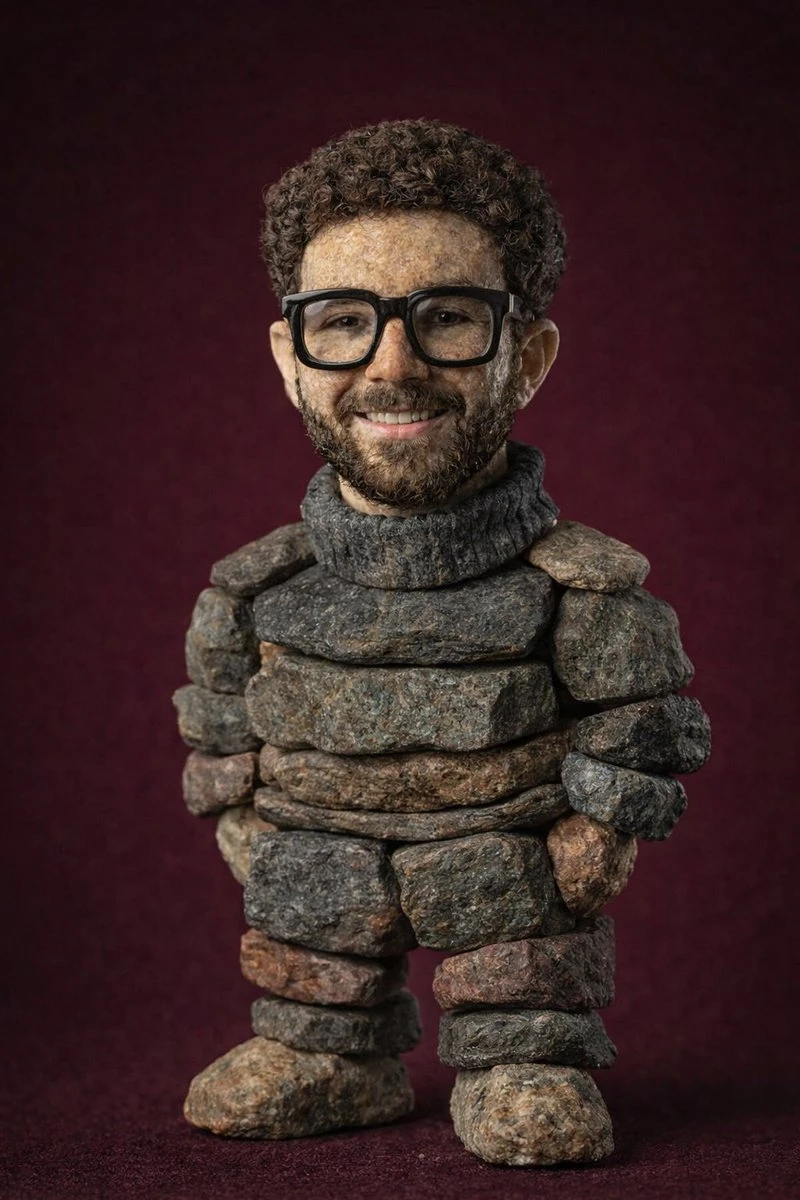
01
Swap the setting
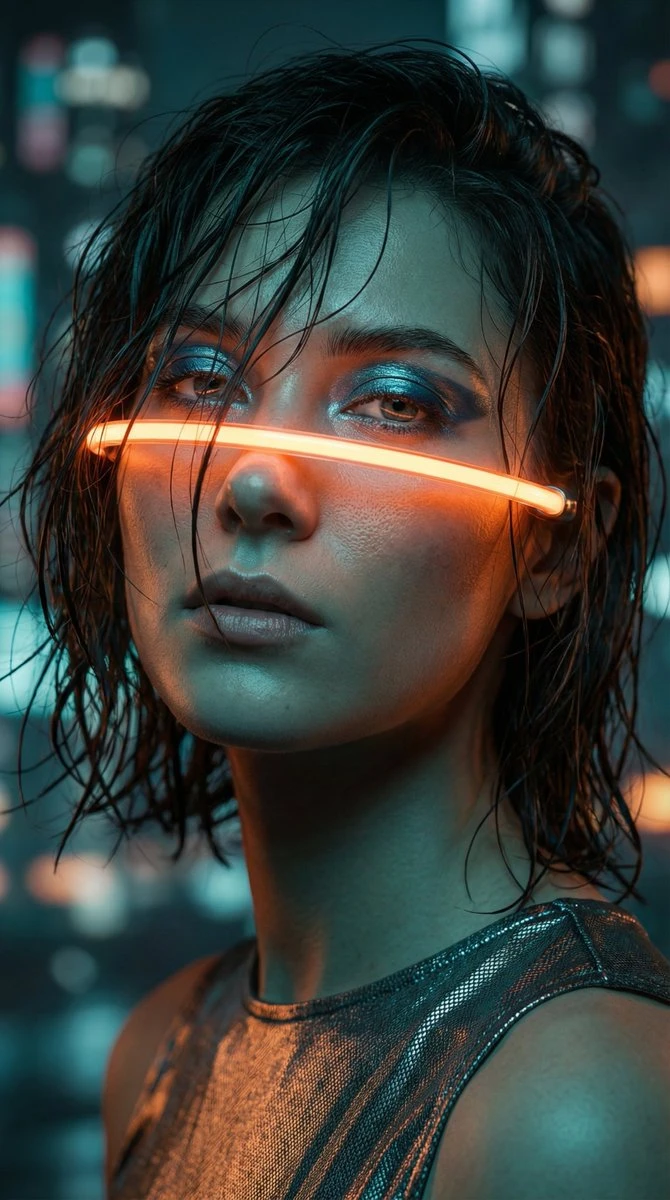
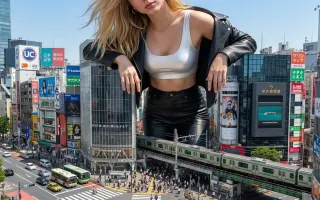
Explain where the subject should appear next. Review its scale, edges and shadow in the new setting.
Image to image AI creates a new picture guided by a source image and a written instruction. Use a reference-image variation to explore a different setting, palette or visual medium.
Choose a Wan 3.0 tool to remove distractions, edit a background or enhance a photo. Start with the task your image needs.
Image to image AI creates a new picture guided by a source image and a written instruction. Use a reference-image variation to explore a different setting, palette or visual medium.
Explain where the subject should appear next. Review its scale, edges and shadow in the new setting.
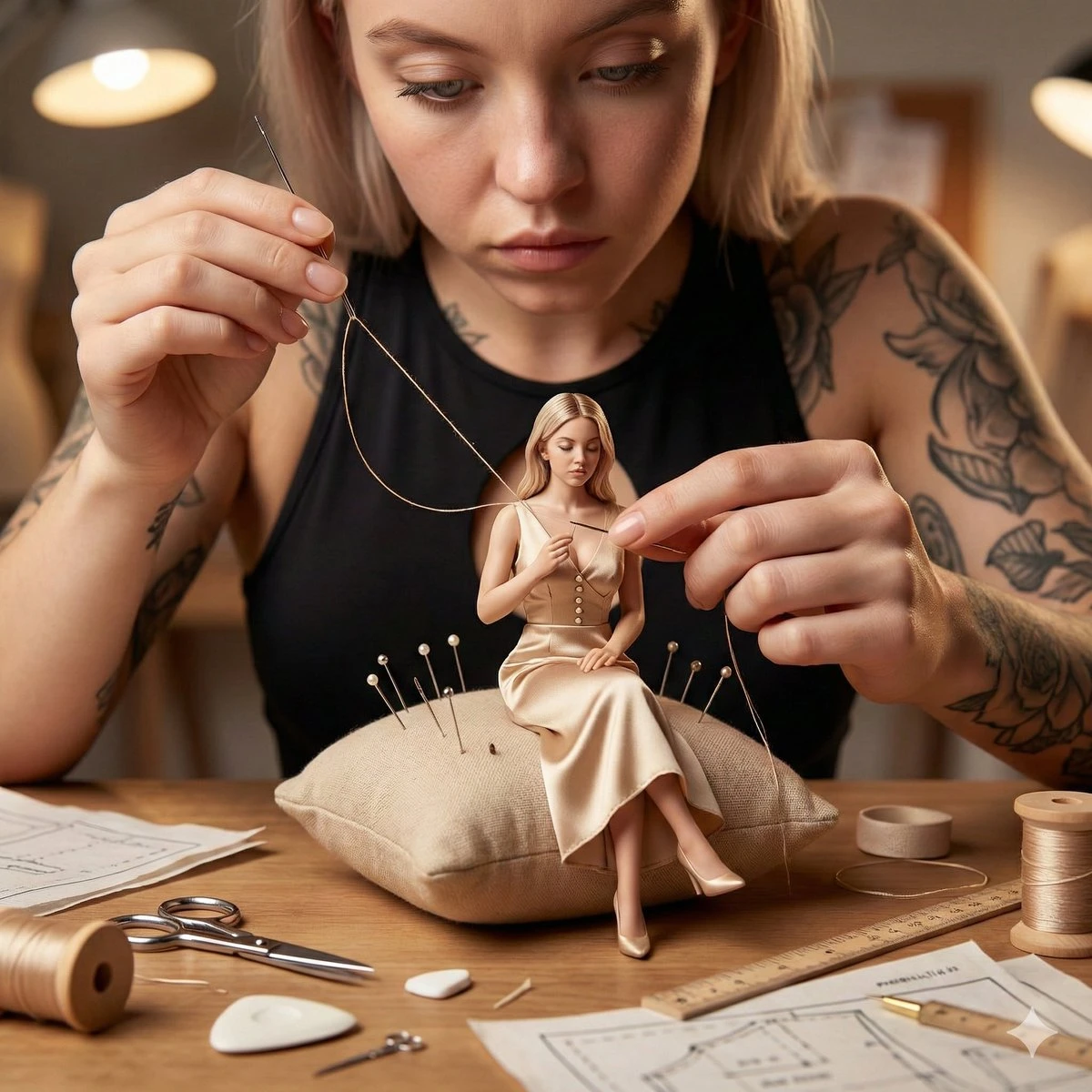
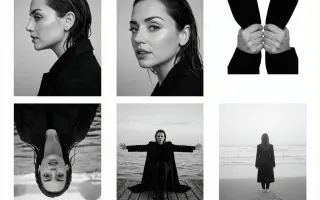
Hold the composition in your brief and ask for a specific color treatment. Compare the overall balance.
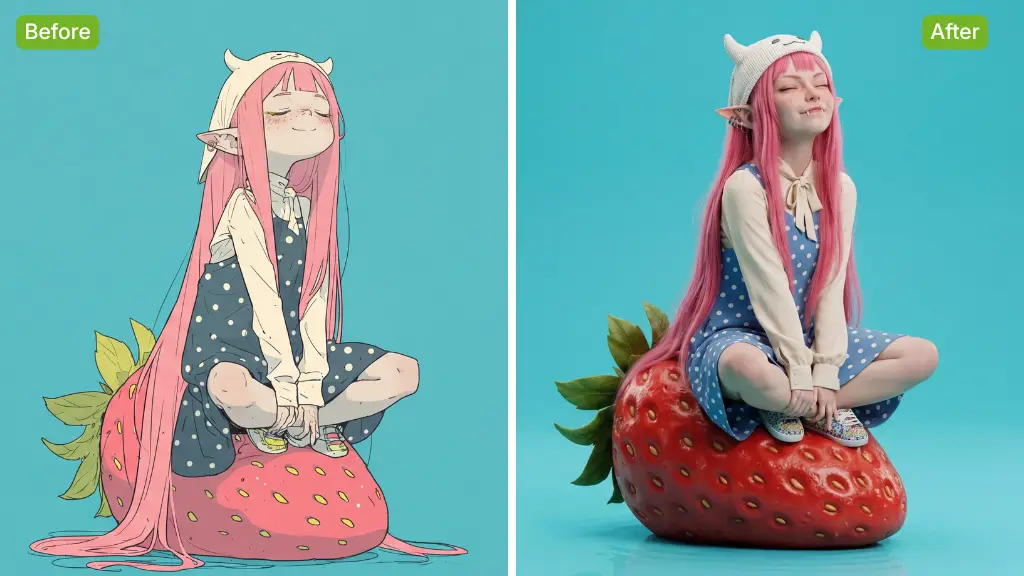
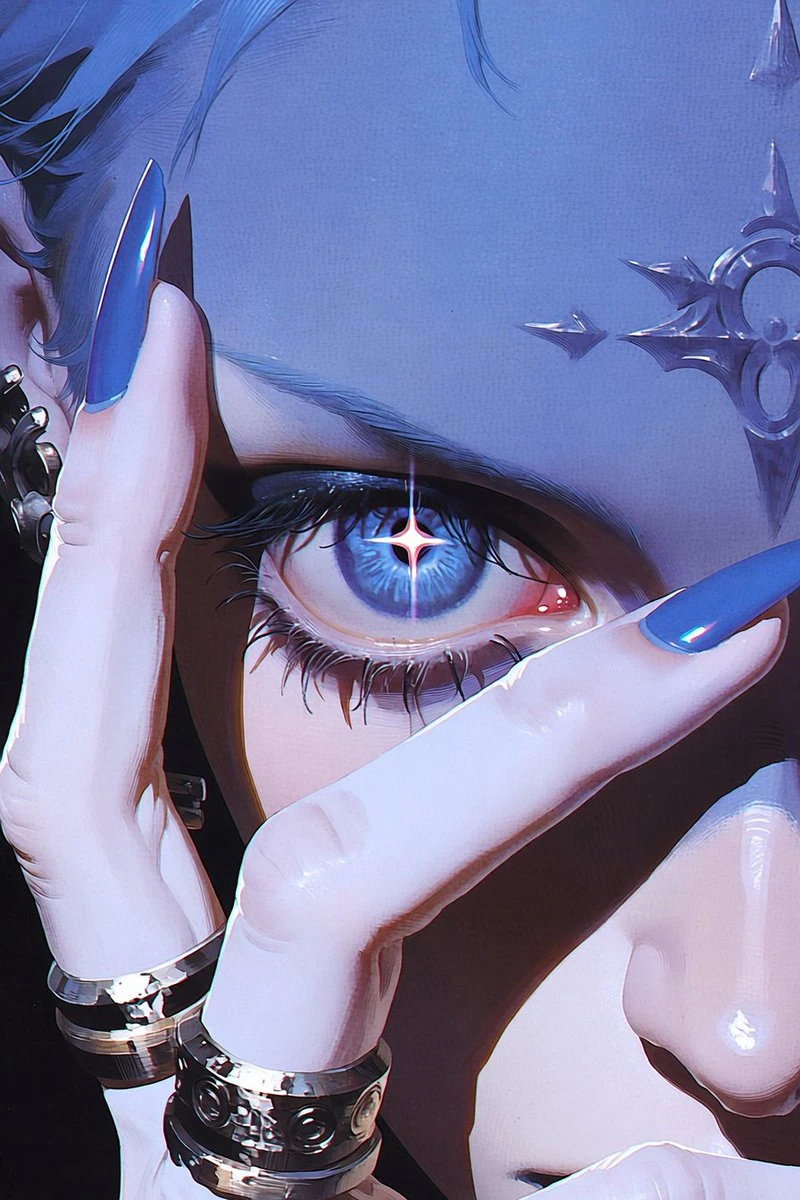
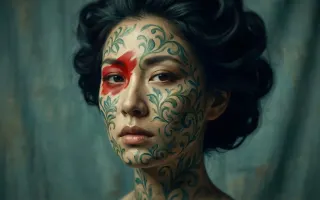
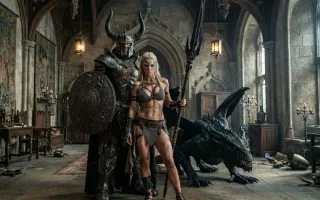
Name the medium and the details that identify your subject. Treat the output as a new interpretation.
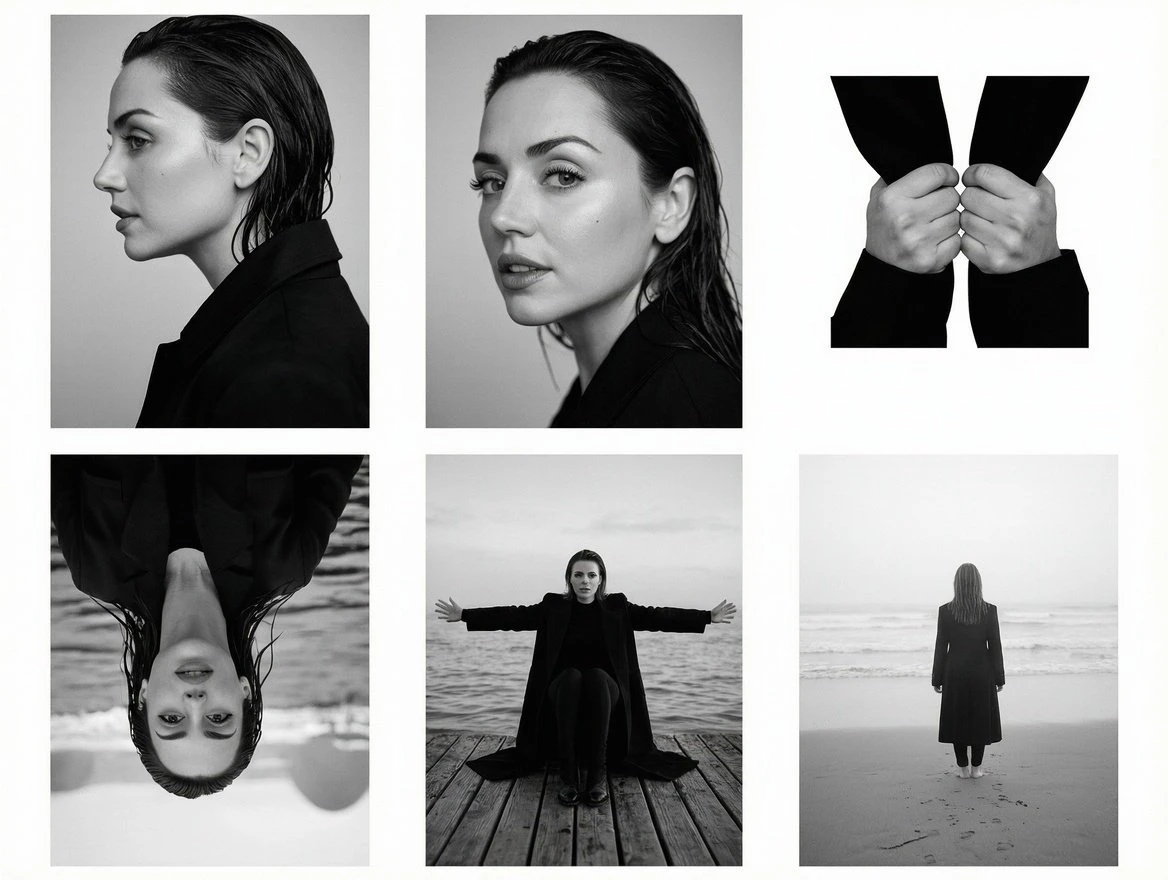
For swap the setting, decide which details would make the draft useful before generating. Return to those criteria when checking the subject, composition and accuracy of any lettering. Use that comparison to choose your next revision.
Prepare the input before choosing the output. The composer shows the settings and credit estimate for this particular draft.
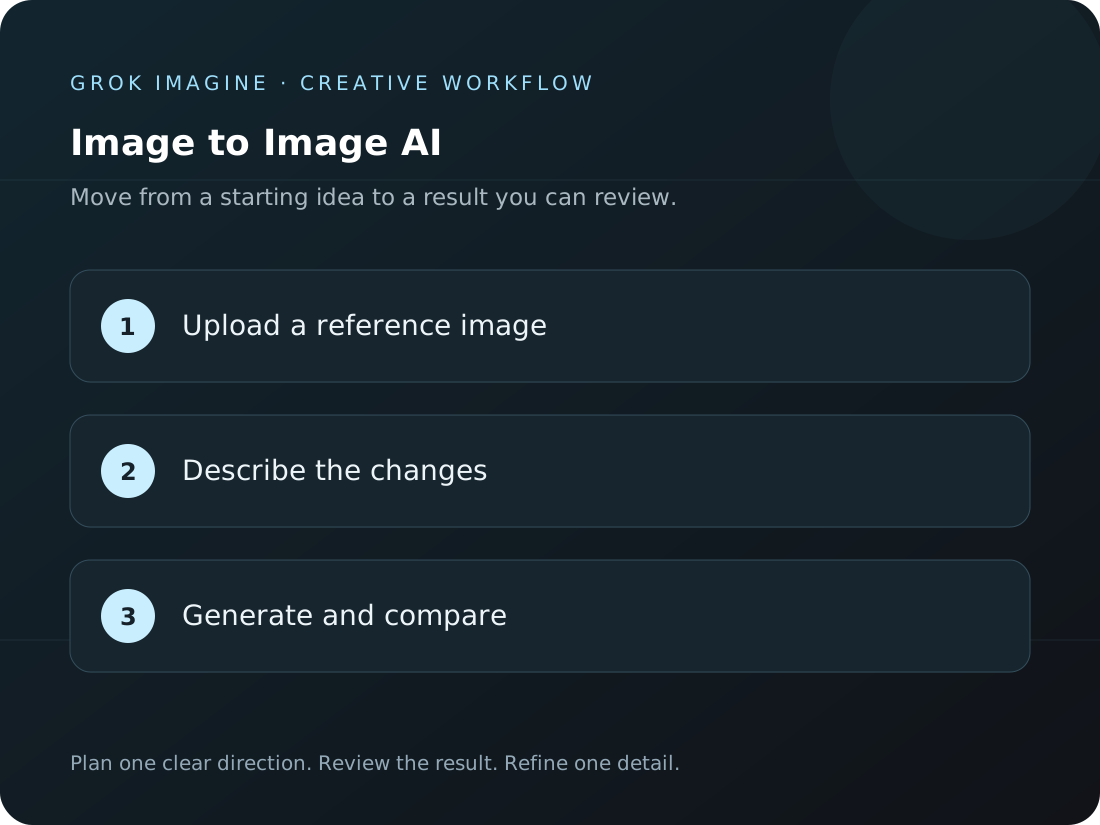
Upload the source photo and describe the specific adjustment. Mention the details you want the new image to retain.
Check the selected model’s supported image size and format. Confirm the credit estimate for this edit.
Review the generated task in Create. Inspect the edited region and the surrounding details before downloading.
Each direction below answers a different question. Pick the one closest to your current task, then add the details of your own project.
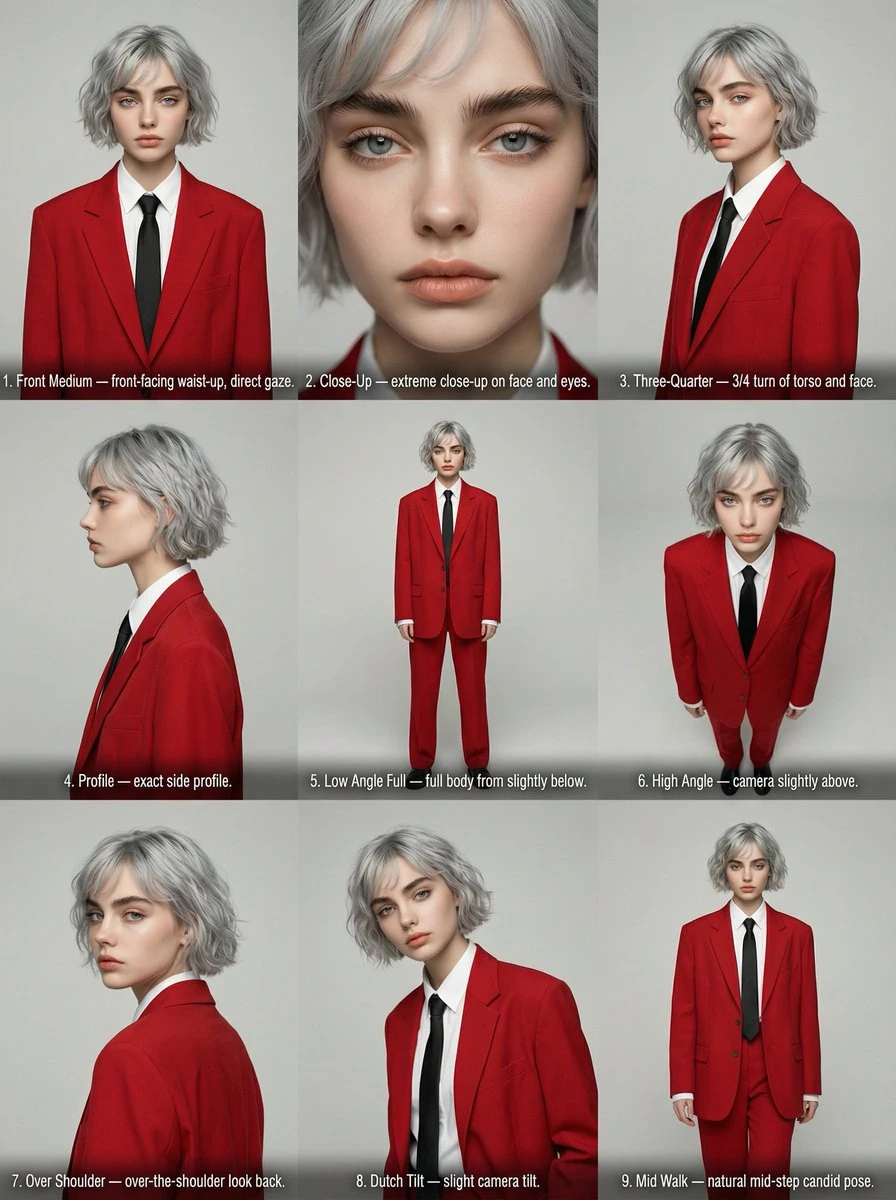
Explain where the subject should appear next. Review its scale, edges and shadow in the new setting.
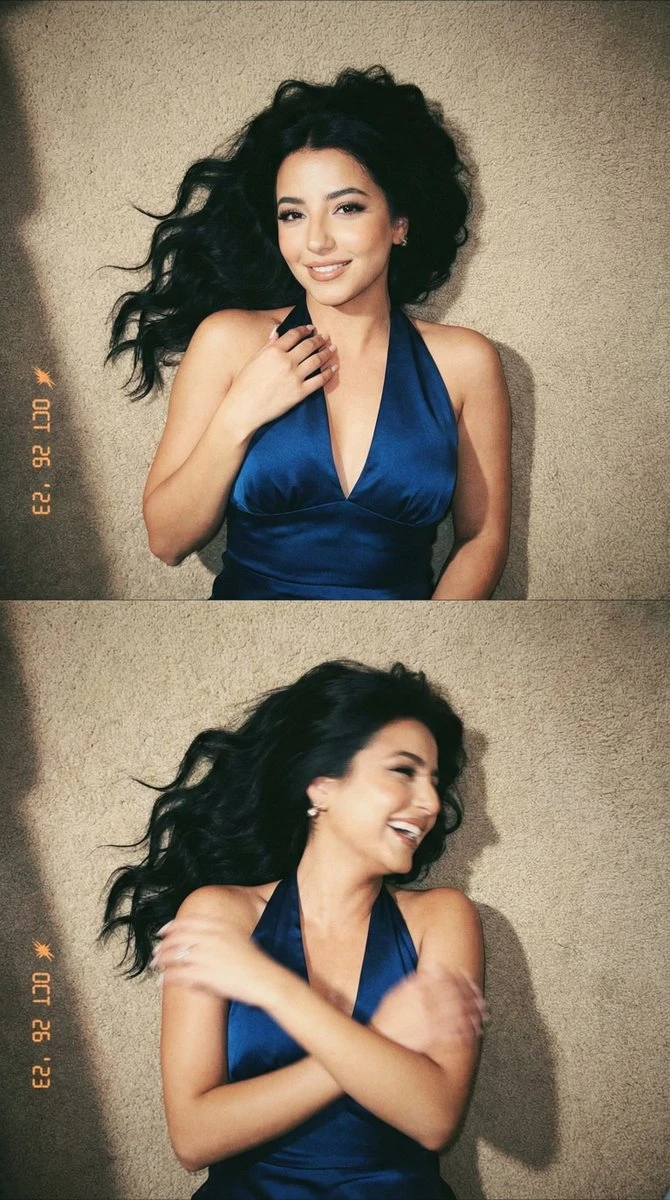
Hold the composition in your brief and ask for a specific color treatment. Compare the overall balance.
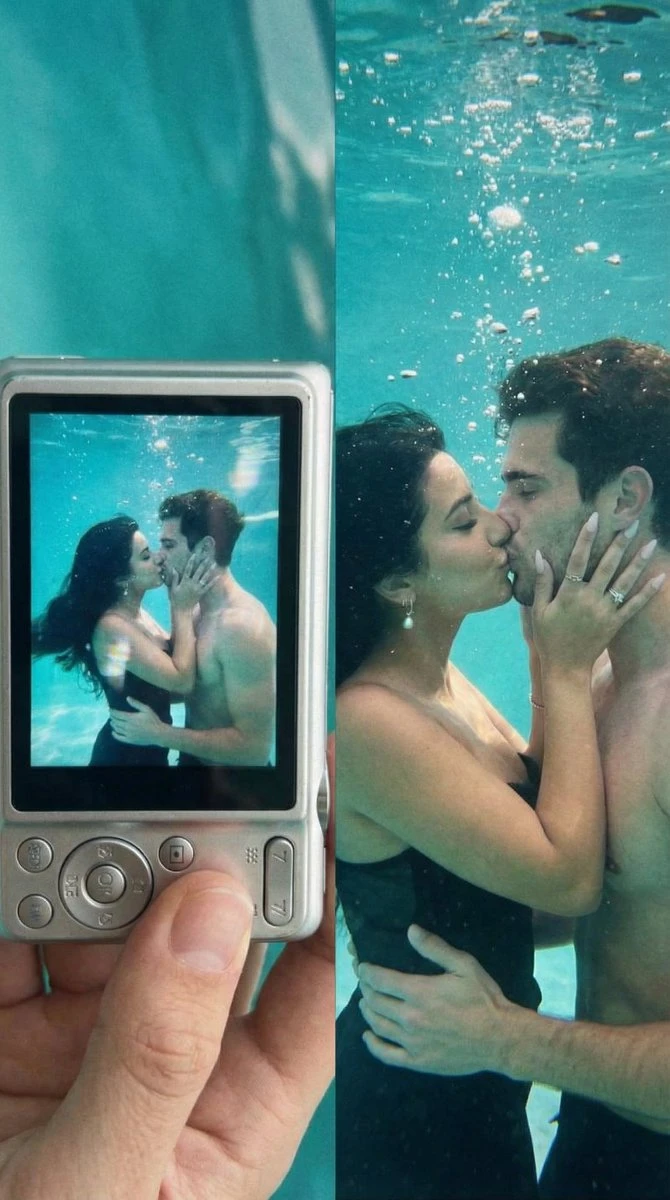
Name the medium and the details that identify your subject. Treat the output as a new interpretation.
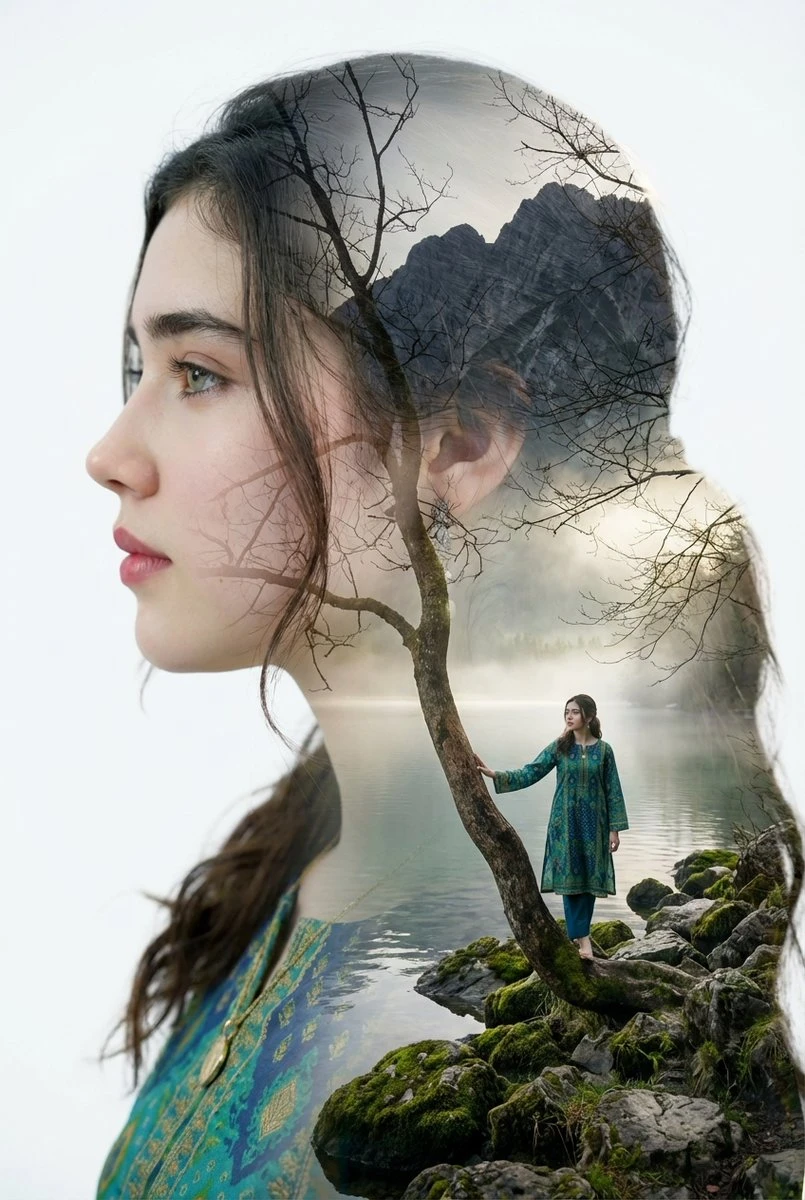
Place the selected result into the intended layout or edit. Check subject clarity, available space and any lettering or sound still needed. Compare product and identity details with the original references before handoff.
Check how Image to Image AI fits this task before committing the next draft.
Need help? Contact support
Use the same reference and change one instruction, such as the setting or palette. Compare both drafts with the source rather than judging atmosphere alone.
The composer shows the options supported by your selected model and the estimate for this request. Recheck the cost after changing output settings, then follow the completed task in Create.
Follow the task in Create after submission. Open the completed result there and inspect it before downloading.
Start with a brief for swap the setting. Watch or inspect the result before deciding what to change next.