





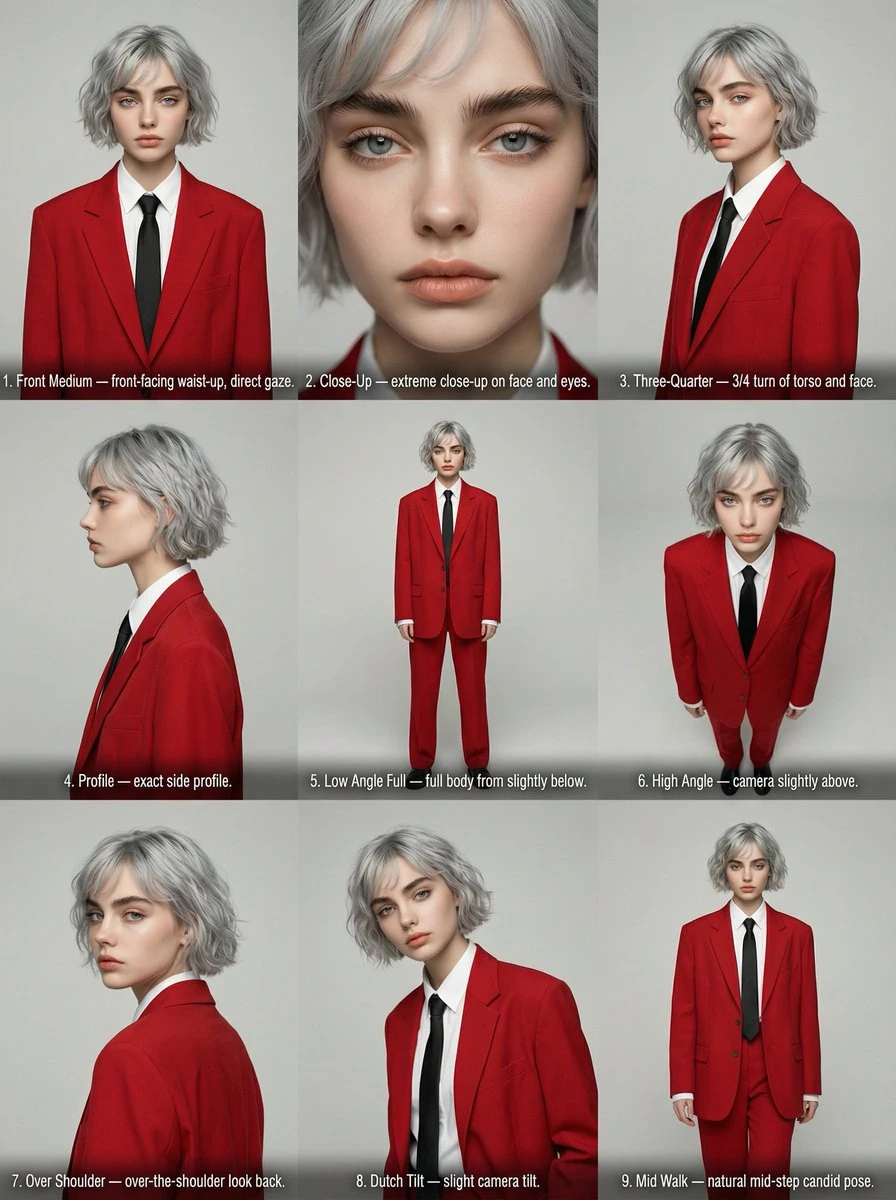
01
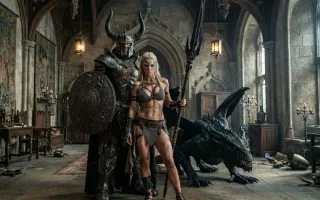
Revisit the location
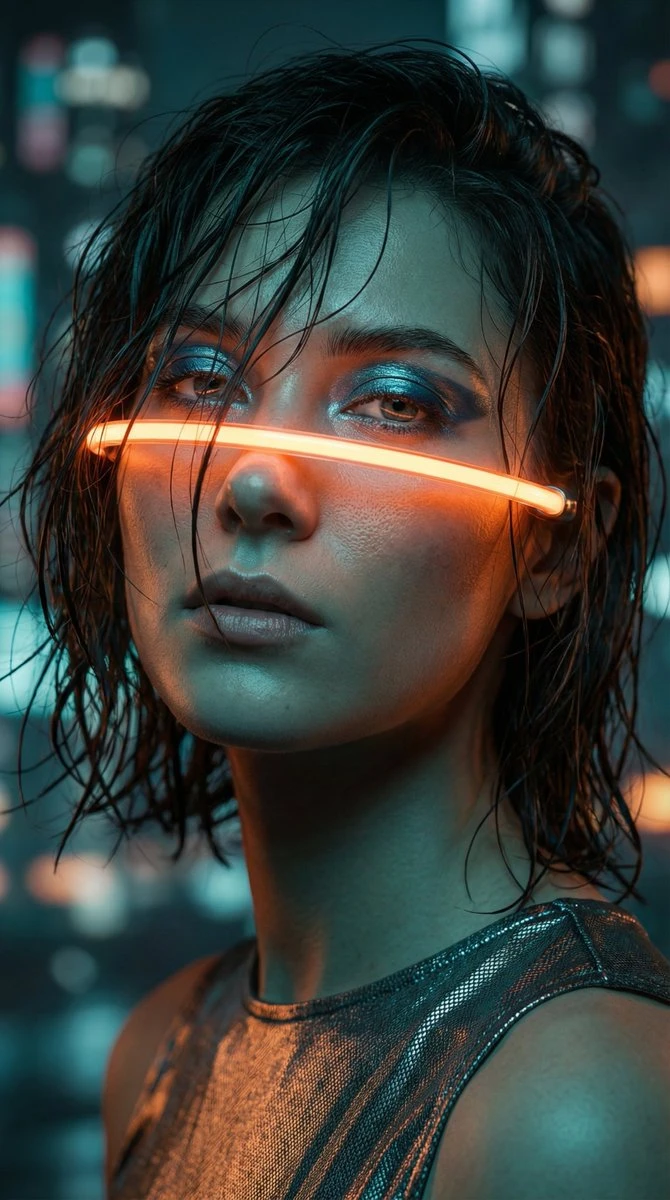
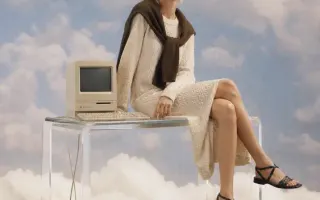
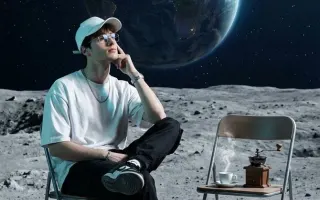
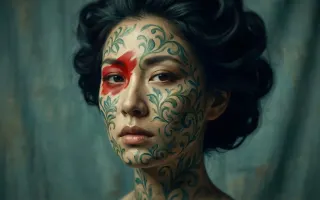
Keep the intended action in your written brief while exploring a different environment. Review continuity frame by frame.
Video to video AI uses source footage to guide another generated take. Explore video style transfer through a new location, palette or illustrated treatment, then compare continuity with the original.
Wan 3.0: MP4 or MOV · 1–15s per clip · 15s total · up to 5 clips · 50 MB per clip. Longer videos are blocked before upload. Output duration does not trim your reference.
Choose a Wan 3.0 tool to remove distractions, edit a background or enhance a photo. Start with the task your image needs.
Video to video AI uses source footage to guide another generated take. Explore video style transfer through a new location, palette or illustrated treatment, then compare continuity with the original.
Keep the intended action in your written brief while exploring a different environment. Review continuity frame by frame.
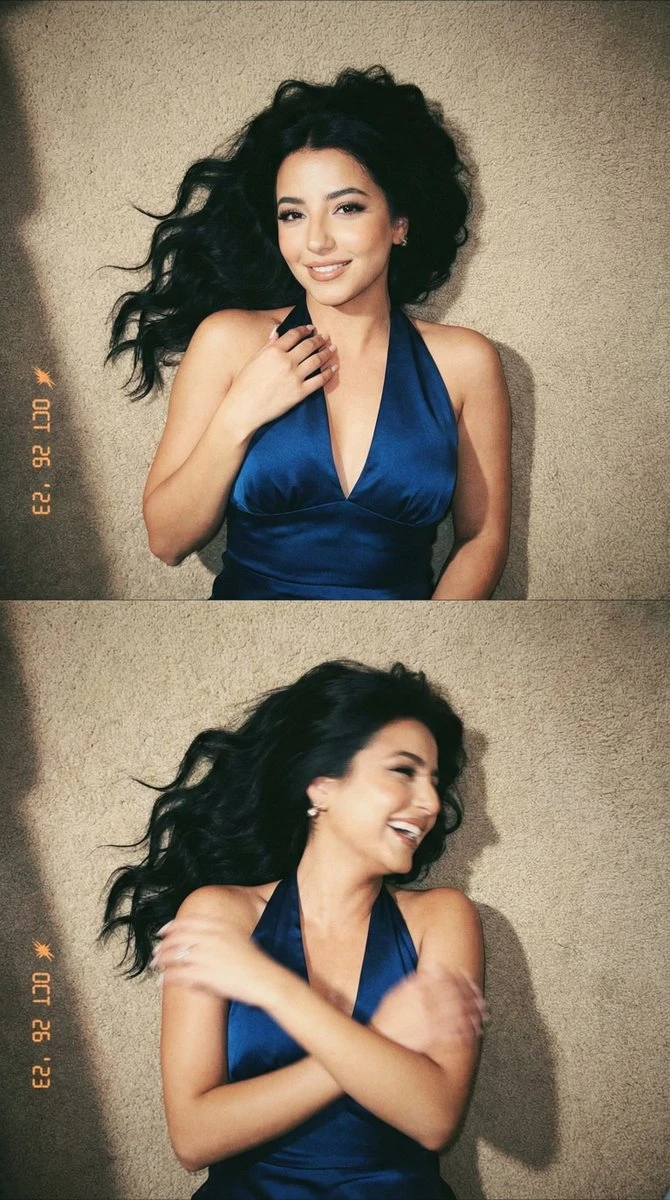
Define a small set of colors and a lighting condition. Compare the treatment across the entire shot.
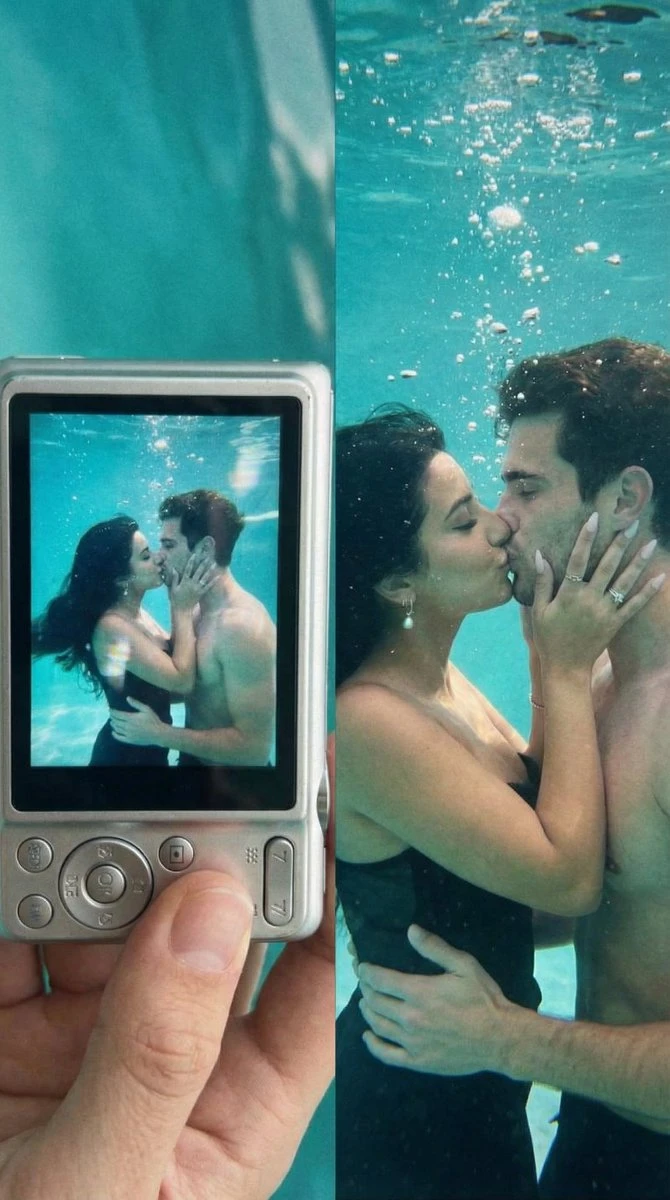
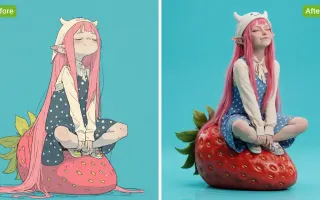
Test how the event reads as illustration or animation. Important identity and object details still need review.
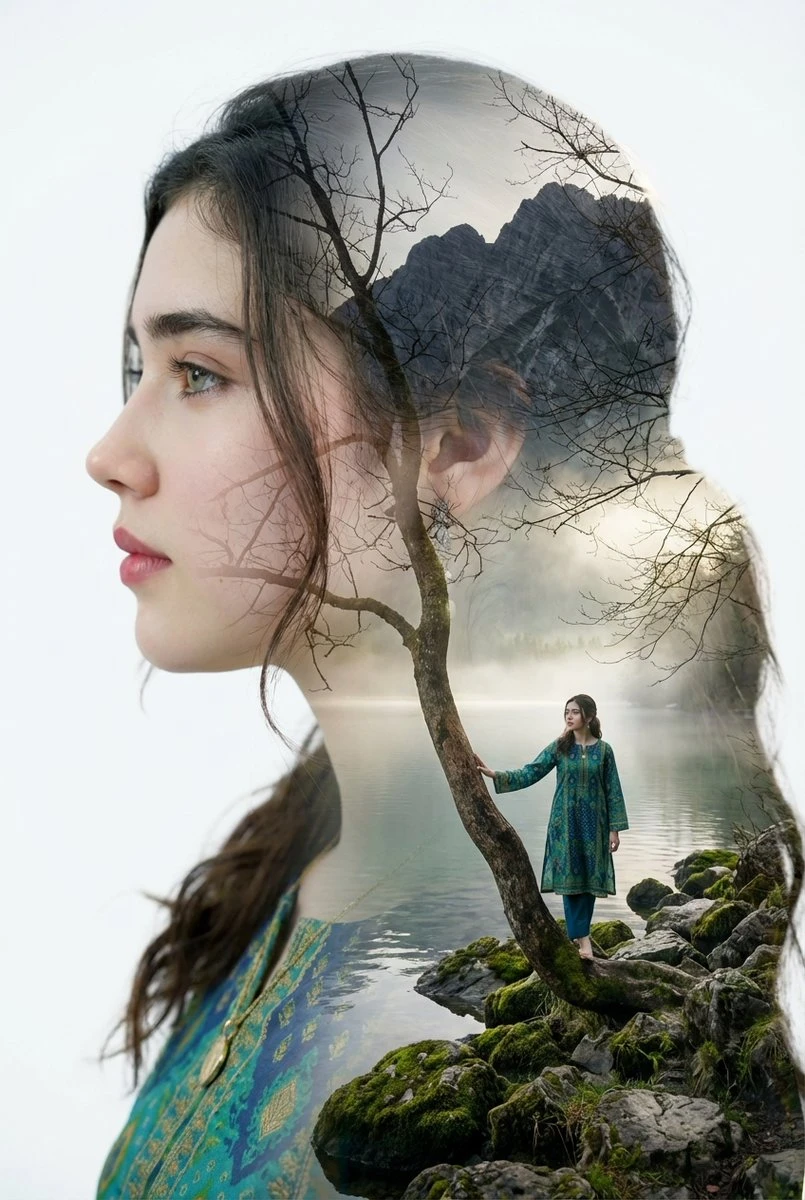
For revisit the location, decide which details would make the draft useful before generating. Return to those criteria when checking the subject, composition and continuity of the movement. Use that comparison to choose your next revision.
Prepare the input before choosing the output. The composer shows the settings and credit estimate for this particular draft.
Upload supported material and say which parts should guide the new take. Keep the requested transformation specific.
Pick a model that accepts your input. Review its available format and credit estimate before requesting a clip.
Open the finished task in Create. Watch the whole sequence alongside your original before saving it for an edit.
Each direction below answers a different question. Pick the one closest to your current task, then add the details of your own project.
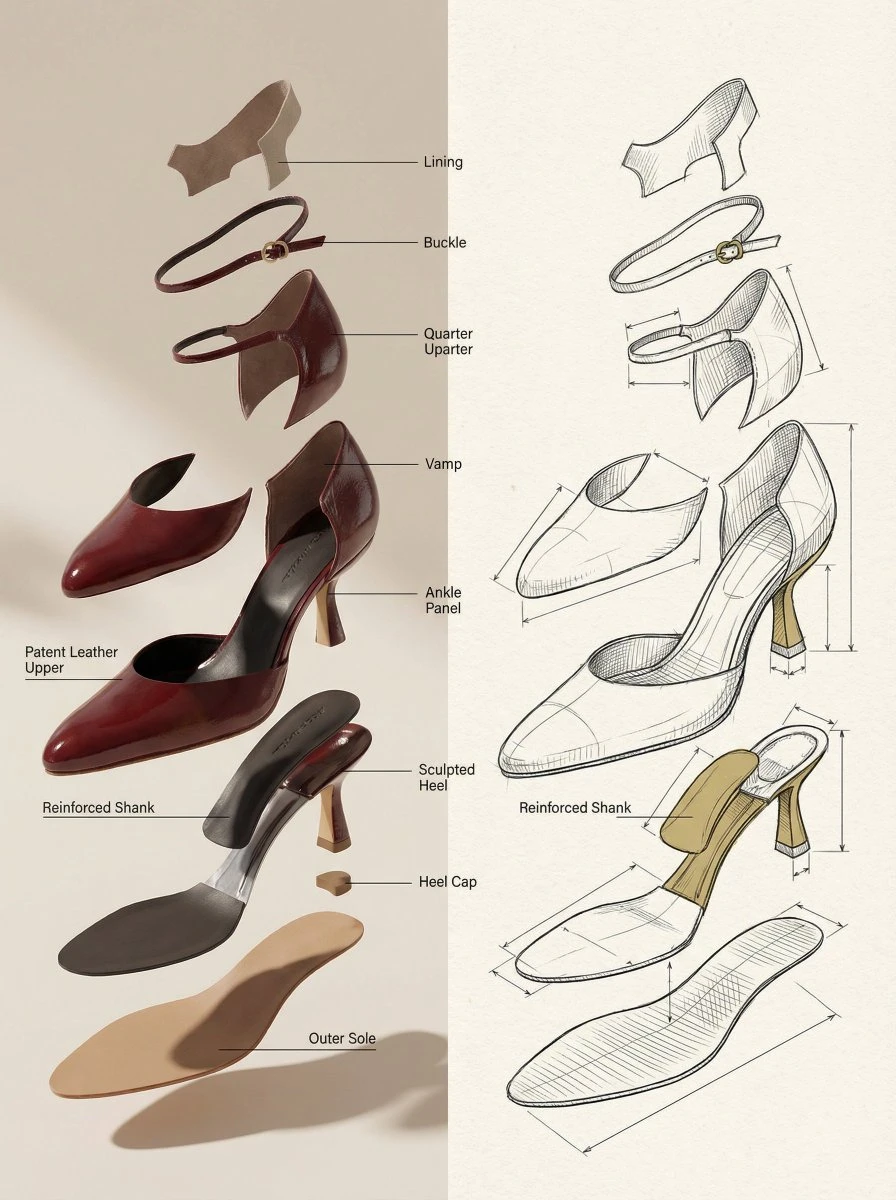
Keep the intended action in your written brief while exploring a different environment. Review continuity frame by frame.
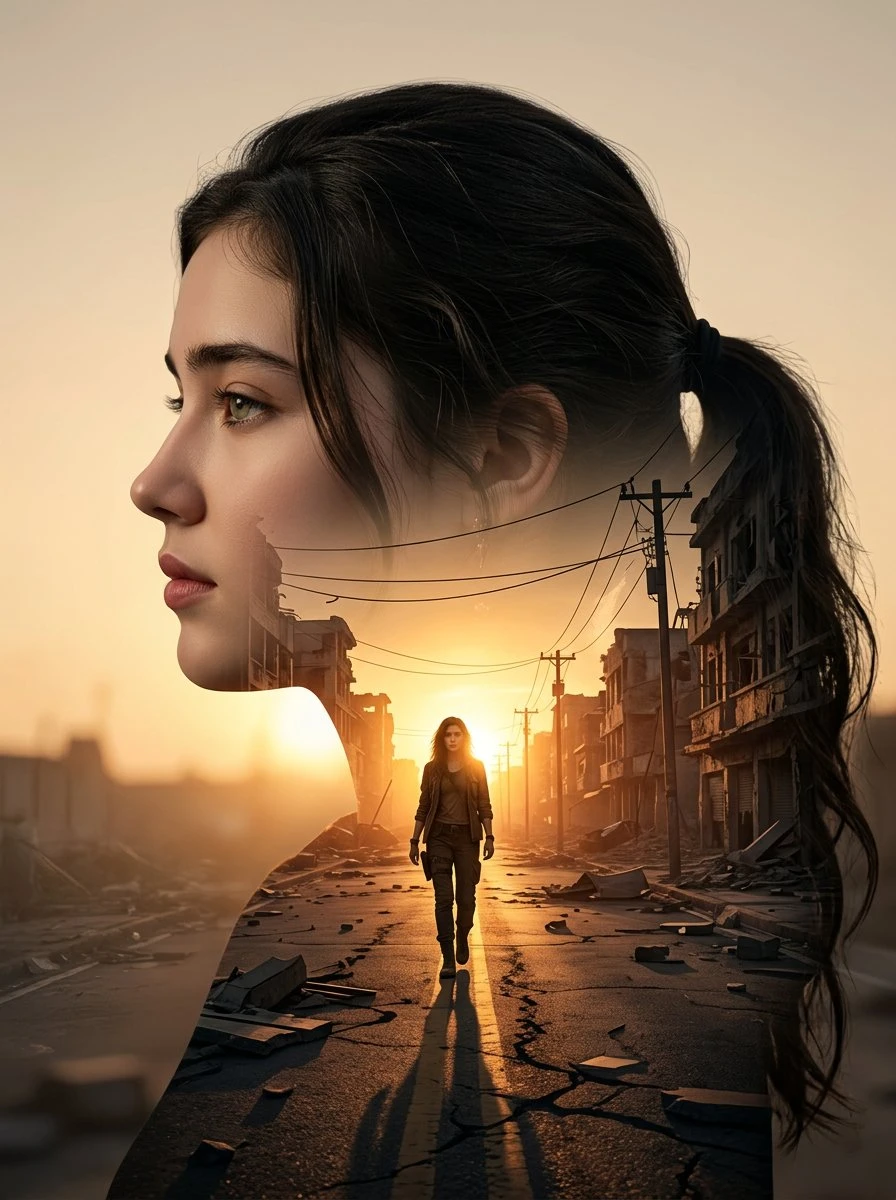
Define a small set of colors and a lighting condition. Compare the treatment across the entire shot.
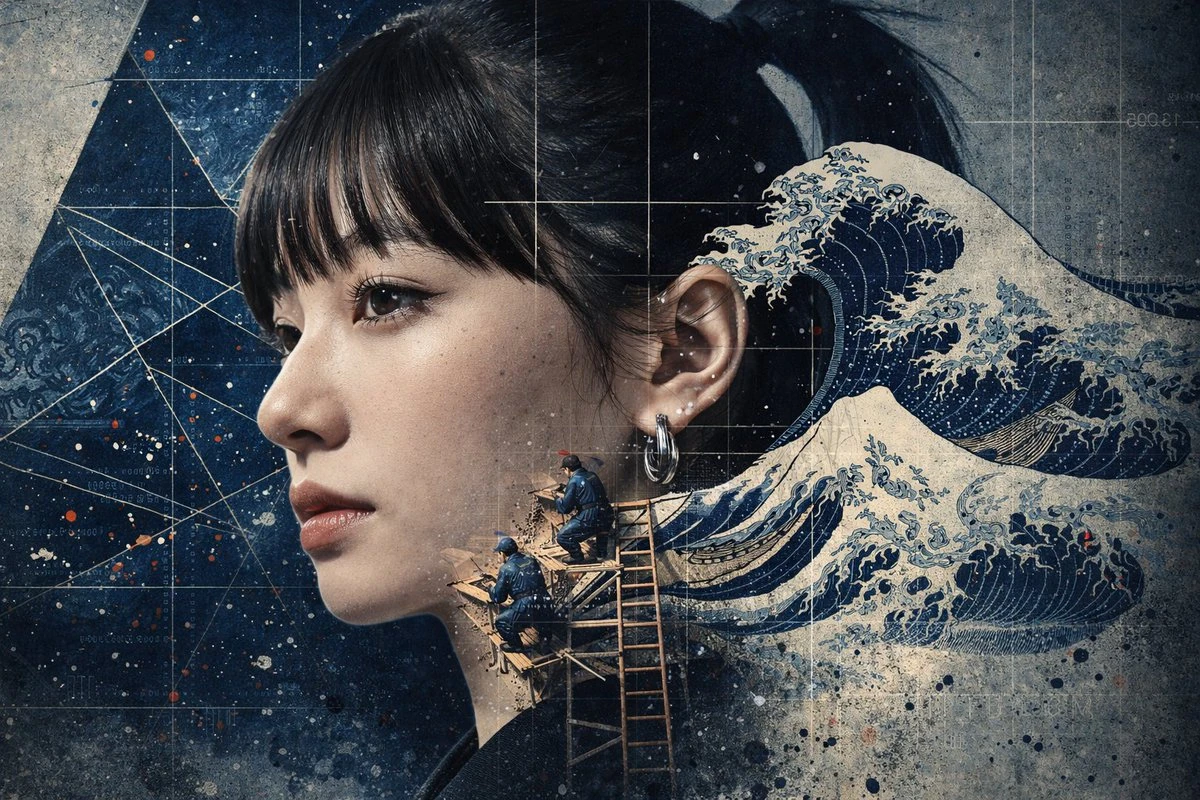
Test how the event reads as illustration or animation. Important identity and object details still need review.
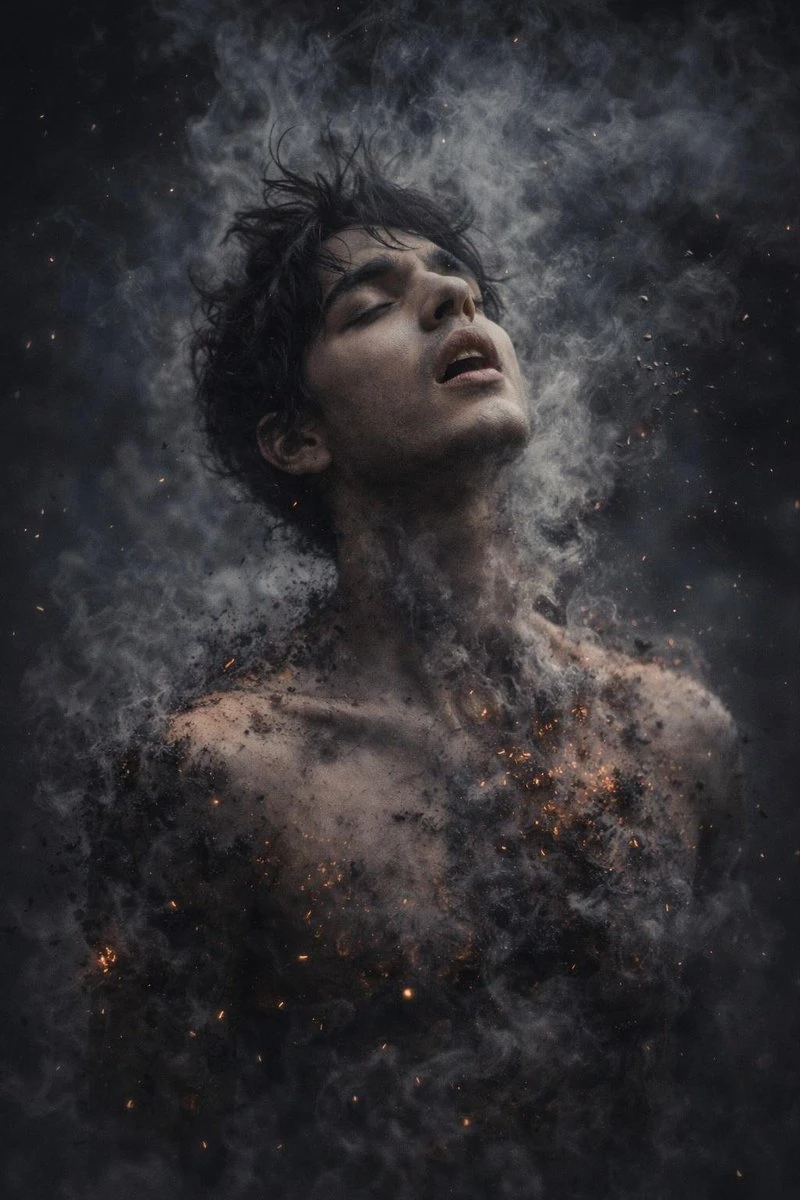
Place the selected result into the intended layout or edit. Check subject clarity, available space and any lettering or sound still needed. Compare product and identity details with the original references before handoff.
Check how Video to Video AI fits this task before committing the next draft.
Need help? Contact support
The source guides a newly generated clip. Timing, identity and object details may change, so compare the entire take with the original before using it.
The composer shows the options supported by your selected model and the estimate for this request. Recheck the cost after changing output settings, then follow the completed task in Create.
Follow the task in Create after submission. Open the completed result there and inspect it before downloading.
Start with a brief for revisit the location. Watch or inspect the result before deciding what to change next.