













01
An establishing shot
Establish the location before introducing the subject. Leave room in the frame for the movement that follows.
Wan 3.0 Video is the workspace for choosing how to make a clip. Start from text, a still image or supported references, then use the available model settings to shape the shot.
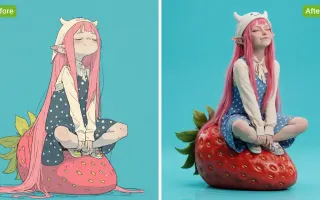
Choose a Wan 3.0 tool to remove distractions, edit a background or enhance a photo. Start with the task your image needs.
Wan 3.0 Video is the workspace for choosing how to make a clip. Start from text, a still image or supported references, then use the available model settings to shape the shot.
Establish the location before introducing the subject. Leave room in the frame for the movement that follows.

Give a small gesture the entire frame. A turn, a touch or an opening door can carry one complete beat.

Create a short visual pause between two scenes. Judge it by whether it connects the mood and direction of your edit.

Put the chosen result into its intended layout or edit. Inspect it at the actual display size before publishing.
Define the requested change before choosing the output.
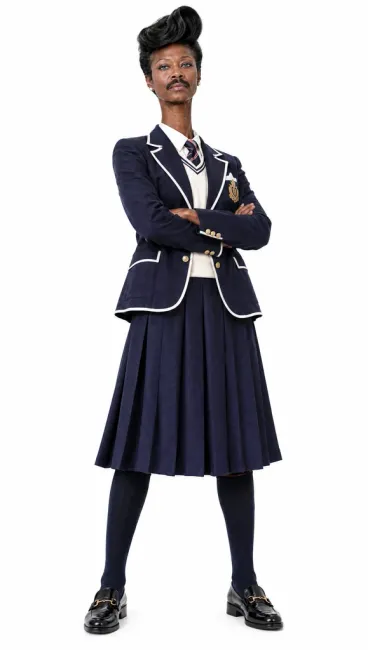
Write the subject, its action and the camera position. Keep the first brief short enough to assess as one shot.
Use the selected model’s available duration, resolution and aspect ratio. Read the displayed credit estimate before submitting.
Open the completed task in Create. Compare the action with the brief and download the take you want to keep.
Each direction below addresses a different visual decision.

Establish the location before introducing the subject. Leave room in the frame for the movement that follows.
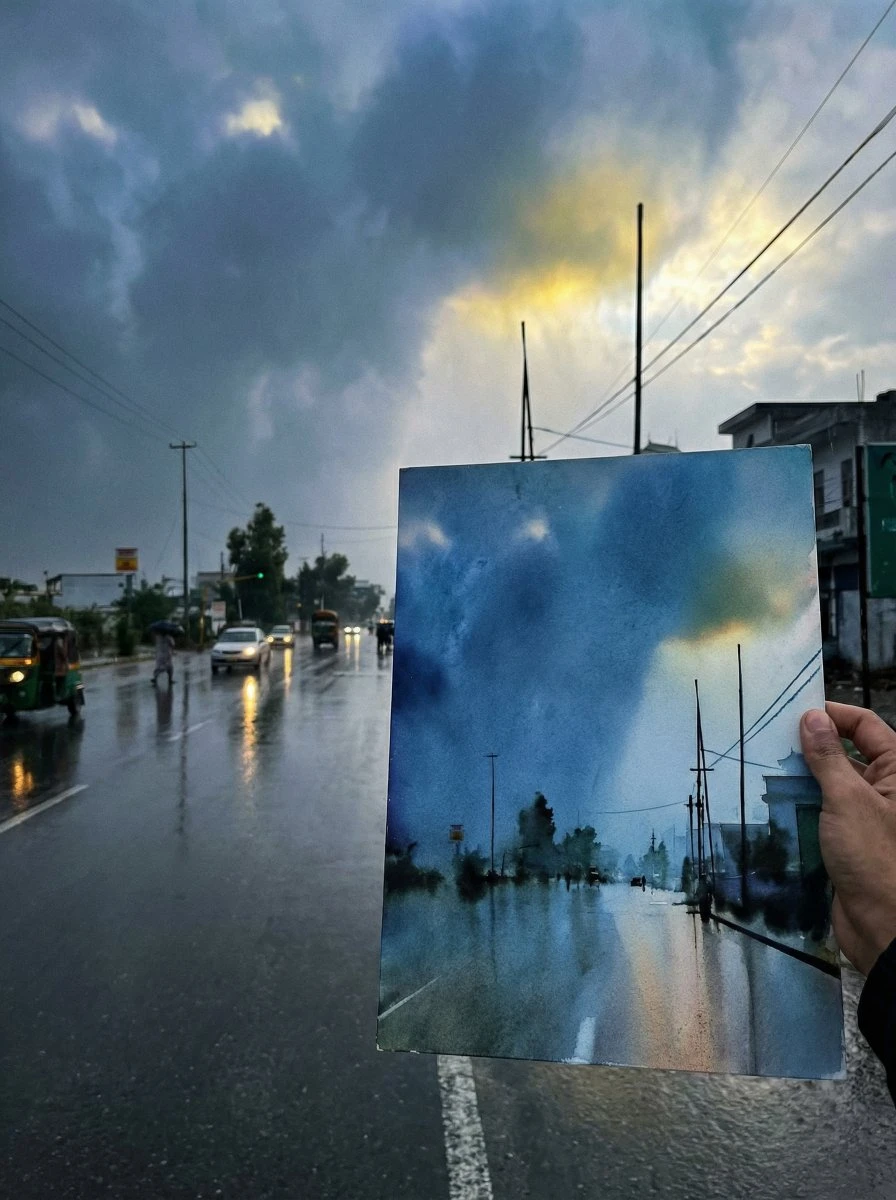
Give a small gesture the entire frame. A turn, a touch or an opening door can carry one complete beat.
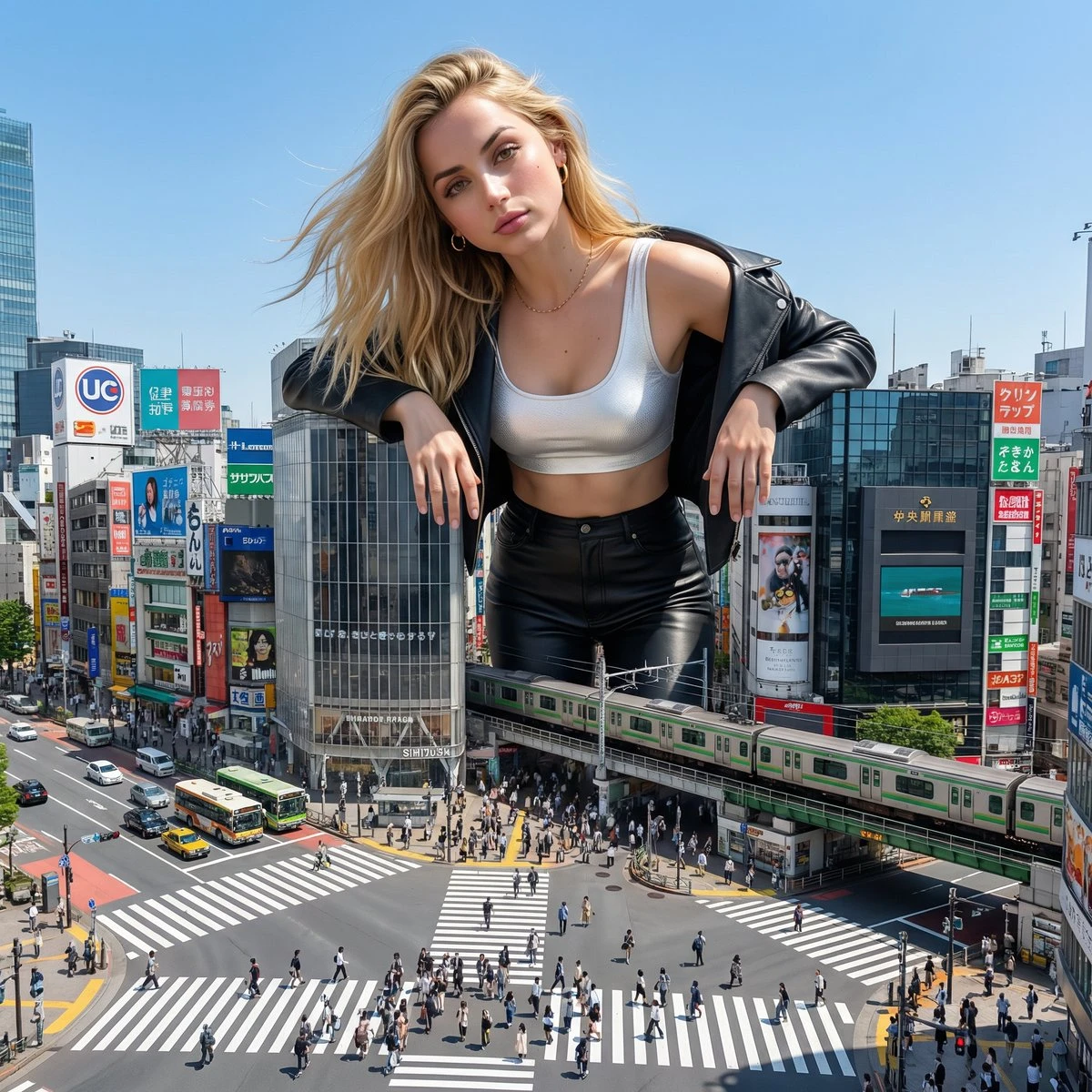
Create a short visual pause between two scenes. Judge it by whether it connects the mood and direction of your edit.

Put the chosen result into its intended layout or edit. Inspect it at the actual display size before publishing.
Check the input, expected output and cost before requesting a draft.
Need help? Contact support
Start from text for a new scene, image-to-video for a still reference, or a supported reference workflow when existing visual material should guide a new clip.
Follow the task in Create. The finished clip is available there for playback and download so you can review it before using it in an edit.
The composer shows the credit estimate for the selected model and settings. Check it again after changing the output format before submitting the request.
Wan 3.0 Video is the workspace for choosing how to make a clip. Start from text, a still image or supported references, then use the available model settings to shape the shot.